

Get Started
Train and Deploy a Custom Model
Train a task-specific model using demo data, deploy it, and see how it performs.
When off-the-shelf models aren't good enough for a specific task, fine-tune one that is. A task-specific model is typically smaller, faster, and cheaper to run than the general-purpose model it replaces, while being more accurate for your workload.
This guide uses the Customer Support Chatbot demo project to walk through the full loop: launching a training job, monitoring progress, and deploying the result. No data of your own is needed, the demo project comes with everything pre-loaded.
This guide shows each step of the manual training loop. To automate the full loop from your live traffic, see AutoTrainer.
Start the demo project
If you already created the demo project, you're all set — open it from the dashboard and skip to the next section.
Otherwise:
- From the dashboard, open the project switcher (the dropdown with your current project's name, at the top of the sidebar) and click Create Project.
- Under Explore with a demo project, select the Customer Support Chatbot card, give the project a name, and click Create & seed project.
The project comes pre-loaded with the two datasets a training job requires:
| Artifact | Name | Role in training |
|---|---|---|
| Training dataset | customer-support-train | The data the model learns from |
| Eval dataset | customer-support-eval | A held-out set used to measure learning progress, kept disjoint from training data |
Train a model
Create a new training job
Open Fine-tuning in the sidebar and click New Training Job.
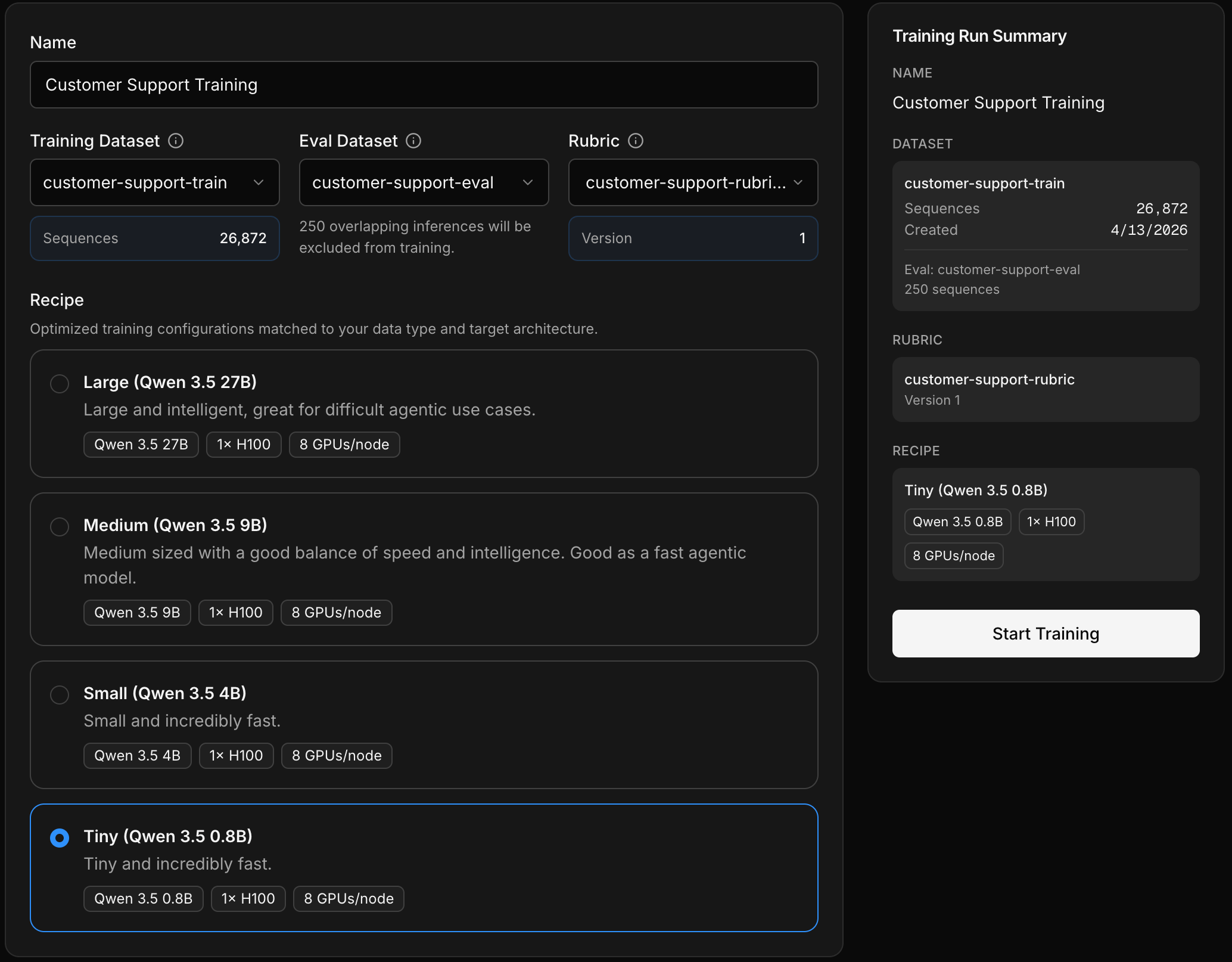
Select the two datasets from your demo project; the platform applies the default judge automatically:
- Training dataset —
customer-support-train - Eval dataset —
customer-support-eval
Choose a recipe
Next, pick a recipe — a pre-configured training setup with a base model, optimized parameters, and compute config. For this demo, the smallest recipe works well and will finish the fastest.
Launch training
Review your selections and click Start Training. The job will begin shortly.
Monitor training progress
During training, the platform periodically runs the customer-support-eval dataset through your model-in-progress and an LLM judge scores the outputs. You can watch these mid-training eval scores update in real time.
- Scores improving — training is on track
- Scores degrading — training may be overfitting. Stop the run from the dashboard or with
inf training cancel, fix your data, and retrain.
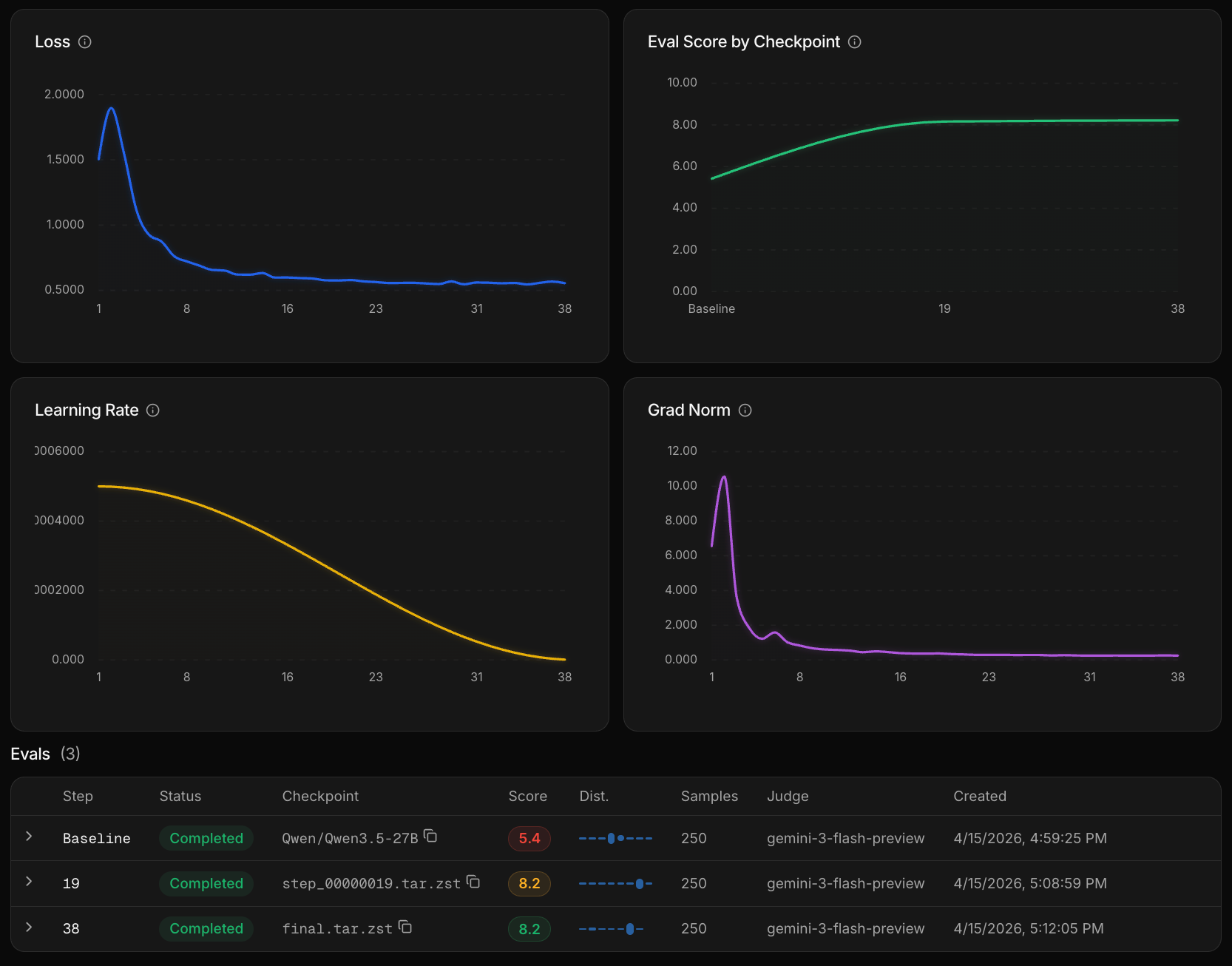
See Monitor a Training Run for more on reading these charts.
Deploy the trained model
Deploy
When training completes, your model is automatically registered and ready to deploy. Navigate to Dedicated in the sidebar, name your deployment, and click Deploy. The GPU spins up in a few minutes depending on model size.
Call your model
Once deployed, you call it the same way you'd call any model through the Inference API — same base URL, same headers — just swap the model parameter to your trained model's identifier.
import OpenAI from "openai";

const client = new OpenAI({
  baseURL: "https://api.inference.net/v1",
  apiKey: process.env.INFERENCE_API_KEY,
});

const response = await client.chat.completions.create({
  model: "your-org/your-trained-model",
  messages: [
    {
      role: "user",
      content: "I was charged twice for my subscription, can you help?",
    },
  ],
});
Replace your-org/your-trained-model with the model identifier shown on your deployment page. See Call Your Deployment for the full setup guide.
What you just learned
- Training teaches a model your specific task using your data
- Mid-training evals give you visibility into whether training is working before it finishes
- Deployment puts the trained model behind the same API you already use, no code changes beyond swapping the model name
Next steps
Choose a recipe
Understand recipe tiers and how to pick the right one for your task.
Launch a training run
The full training flow with your own data — cost and duration estimates included.
Call your deployment
Full production setup for calling your deployed model.
Monitor with Gateway
Track your deployed model's cost, latency, and quality over time.