> ## Documentation Index
> Fetch the complete documentation index at: https://docs.inference.net/llms.txt
> Use this file to discover all available pages before exploring further.
# Inference Viewer
> Browse, filter, and inspect individual LLM requests and responses.
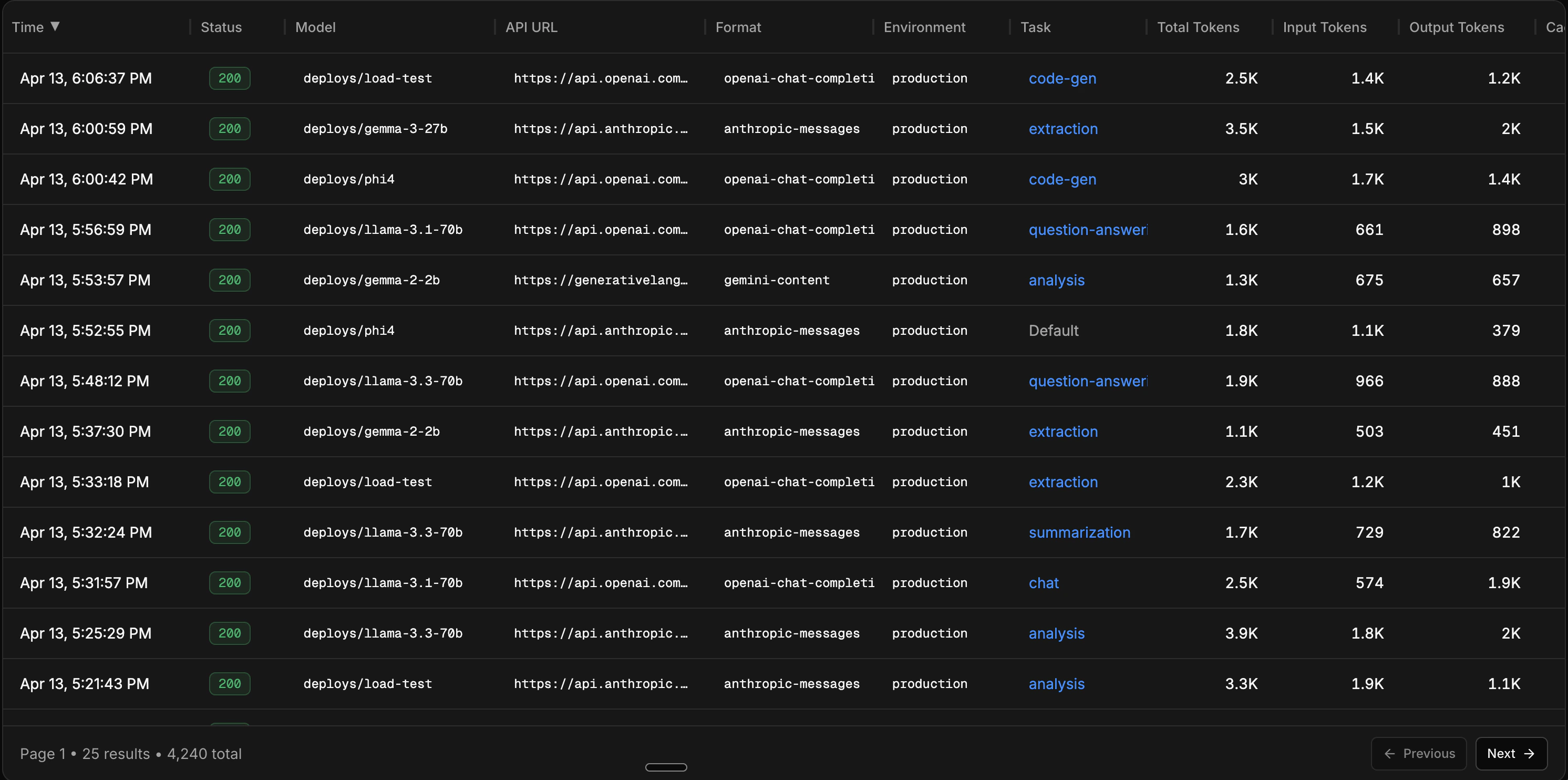
The Inference Viewer is a filterable table of every LLM call that flows through Catalyst. Use it to inspect individual requests, debug issues, and find samples to save as datasets for evals and training.
 ## Table columns
Each row in the table represents a single LLM call. The visible columns are configurable, and include:
| Column | Description |
| --------------------------------- | ------------------------------------------------ |
| **Time** | When the request was sent |
| **Status** | HTTP status code |
| **Model** | The model used |
| **API URL** | The downstream provider endpoint |
| **Environment** | Environment tag (production, staging, etc.) |
| **Task** | The task ID, if one was set |
| **Input / Output / Total Tokens** | Token counts for the request and response |
| **Cached Tokens** | Tokens served from cache |
| **Reasoning Tokens** | Tokens used for reasoning (where applicable) |
| **Cost** | Total cost, with input and output cost breakdown |
| **Duration** | End-to-end request latency |
| **TTFT** | Time to first token (for streaming requests) |
| **Request / Response Size** | Payload sizes in bytes |
You can sort by time, status, cost, duration, tokens, or payload size.
## Filtering
The filter builder lets you combine multiple conditions to narrow down your traffic. Filters are available for both categorical and numeric fields.
**Categorical filters:**
* **Model** - filter to specific models
* **Provider** - filter by upstream provider
* **Task** - filter by task ID
* **Environment** - filter by environment tag
* **Status** - filter by HTTP status code or range (success, error, 2xx, 4xx, 5xx, or specific codes like 429)
* **Streaming** - filter streaming vs non-streaming requests
**Numeric filters:**
* **Duration** - filter by latency (e.g. requests slower than 5s)
* **Cost** - filter by cost (e.g. requests costing more than \$0.05)
* **Input / Output Tokens** - filter by token count (e.g. input > 5k tokens)
* **Request / Response Size** - filter by payload size in bytes
**Quick filters** are available for common queries: input tokens > 5k, cost > \$0.05, duration > 5s, and status = error.
## Detail view
Click on any row to open the detail panel. This shows the full picture of a single inference:
* Full request and response payloads (viewable as raw JSON)
* Cost breakdown (input, output, reasoning, cached)
* Token breakdown (input, output, reasoning, cached) with visual bars
* Duration and time to first token
* Model, provider, task, and environment
* Streaming status
* Request metadata (key-value pairs)
* Geolocation (country, city)
## Save as dataset
You can build datasets from live traffic directly in the Inference Viewer or from the [Datasets tab](/platform/datasets/build-from-traffic). Apply filters to get a representative slice of your data, then click **Save as Dataset** to create an eval or training dataset from the filtered results.
The dataset creation flow:
1. Apply your filters to narrow down the traffic
2. Review the matching inferences
3. Optionally set a limit on how many inferences to include
4. Choose whether this is an eval dataset or a training dataset
5. Name the dataset and save
The saved dataset is immediately available for [running evals](/get-started/run-first-eval) or [training a model](/get-started/train-and-deploy).
Use [task tags](/platform/gateway/tasks) to filter by objective before saving a dataset. This gives you clean, focused samples instead of a mix of unrelated traffic.
## Next steps
Step-by-step guide for turning filtered traffic into datasets.
Use your dataset to compare models with rubric-based scoring.
Already have data? Upload a JSONL file directly.
Group calls by objective for better filtering and per-feature metrics.
## Table columns
Each row in the table represents a single LLM call. The visible columns are configurable, and include:
| Column | Description |
| --------------------------------- | ------------------------------------------------ |
| **Time** | When the request was sent |
| **Status** | HTTP status code |
| **Model** | The model used |
| **API URL** | The downstream provider endpoint |
| **Environment** | Environment tag (production, staging, etc.) |
| **Task** | The task ID, if one was set |
| **Input / Output / Total Tokens** | Token counts for the request and response |
| **Cached Tokens** | Tokens served from cache |
| **Reasoning Tokens** | Tokens used for reasoning (where applicable) |
| **Cost** | Total cost, with input and output cost breakdown |
| **Duration** | End-to-end request latency |
| **TTFT** | Time to first token (for streaming requests) |
| **Request / Response Size** | Payload sizes in bytes |
You can sort by time, status, cost, duration, tokens, or payload size.
## Filtering
The filter builder lets you combine multiple conditions to narrow down your traffic. Filters are available for both categorical and numeric fields.
**Categorical filters:**
* **Model** - filter to specific models
* **Provider** - filter by upstream provider
* **Task** - filter by task ID
* **Environment** - filter by environment tag
* **Status** - filter by HTTP status code or range (success, error, 2xx, 4xx, 5xx, or specific codes like 429)
* **Streaming** - filter streaming vs non-streaming requests
**Numeric filters:**
* **Duration** - filter by latency (e.g. requests slower than 5s)
* **Cost** - filter by cost (e.g. requests costing more than \$0.05)
* **Input / Output Tokens** - filter by token count (e.g. input > 5k tokens)
* **Request / Response Size** - filter by payload size in bytes
**Quick filters** are available for common queries: input tokens > 5k, cost > \$0.05, duration > 5s, and status = error.
## Detail view
Click on any row to open the detail panel. This shows the full picture of a single inference:
* Full request and response payloads (viewable as raw JSON)
* Cost breakdown (input, output, reasoning, cached)
* Token breakdown (input, output, reasoning, cached) with visual bars
* Duration and time to first token
* Model, provider, task, and environment
* Streaming status
* Request metadata (key-value pairs)
* Geolocation (country, city)
## Save as dataset
You can build datasets from live traffic directly in the Inference Viewer or from the [Datasets tab](/platform/datasets/build-from-traffic). Apply filters to get a representative slice of your data, then click **Save as Dataset** to create an eval or training dataset from the filtered results.
The dataset creation flow:
1. Apply your filters to narrow down the traffic
2. Review the matching inferences
3. Optionally set a limit on how many inferences to include
4. Choose whether this is an eval dataset or a training dataset
5. Name the dataset and save
The saved dataset is immediately available for [running evals](/get-started/run-first-eval) or [training a model](/get-started/train-and-deploy).
Use [task tags](/platform/gateway/tasks) to filter by objective before saving a dataset. This gives you clean, focused samples instead of a mix of unrelated traffic.
## Next steps
Step-by-step guide for turning filtered traffic into datasets.
Use your dataset to compare models with rubric-based scoring.
Already have data? Upload a JSONL file directly.
Group calls by objective for better filtering and per-feature metrics.